
Merovan Books
Accounting software for businesses and organisations
Manage invoices, payments, payroll and reports in one workspace. Give each team member access to the records they need and keep a record of who approved payments.
30 days free. No card required.
- Invoice total
- GH₵7,500
- First receipt
- GH₵6,300
- Second receipt
- GH₵1,200
- Outstanding balance
- GH₵0
Both receipts stay linked to the original invoice, giving your team a clear record of how the balance was settled.
What Merovan Books does
Invoicing and receivables
Create multi-item invoices and printable receipts. Apply full or partial payments to the invoice and see which customers still owe you.
Read the guideSupplier bills and payment vouchers
Track bills and outstanding supplier balances. Route payment requests for independent approval, then record the payment against its voucher.
Read the guideCash, banking and reporting
Track cash, bank and mobile money accounts. Reconcile balances against statements and run a trial balance, profit and loss statement, balance sheet or cash flow statement.
Read the guideStock, assets and budgets
Value stock from physical counts, maintain a fixed asset register and compare actual spending against your budget.
Read the guidePayroll and payslips
Maintain staff records, record payroll and deductions, and give employees private access to their own payslips.
Read the guideAccess and accounting controls
Assign access by job role, review a trail of changes and lock closed periods to protect posted records from unauthorised changes.
Read the guideSee Merovan Books in action
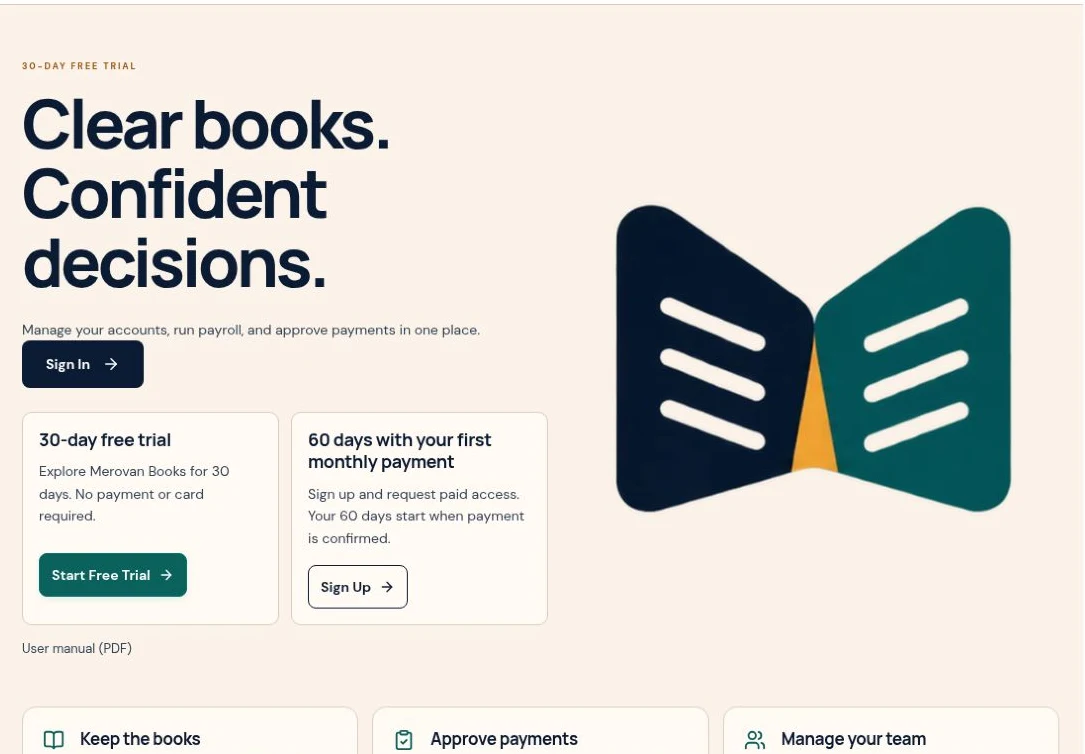
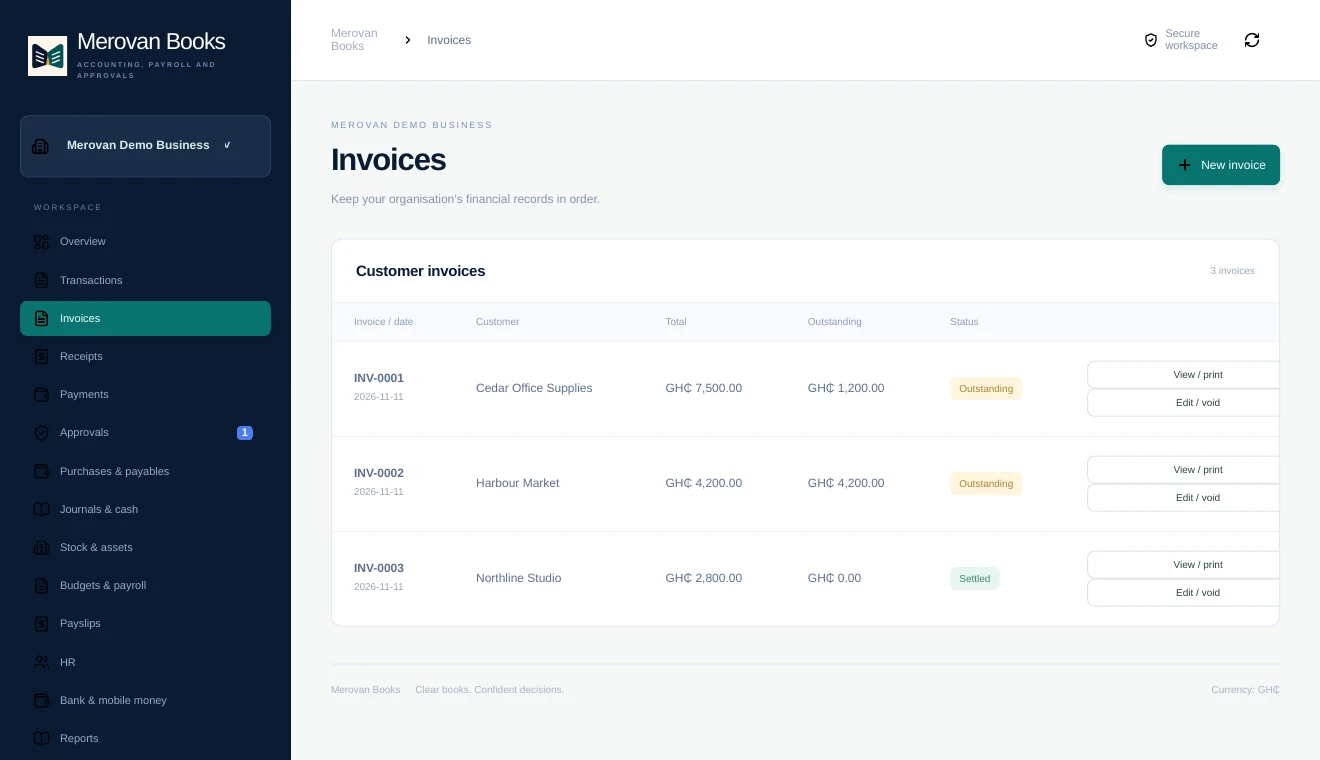
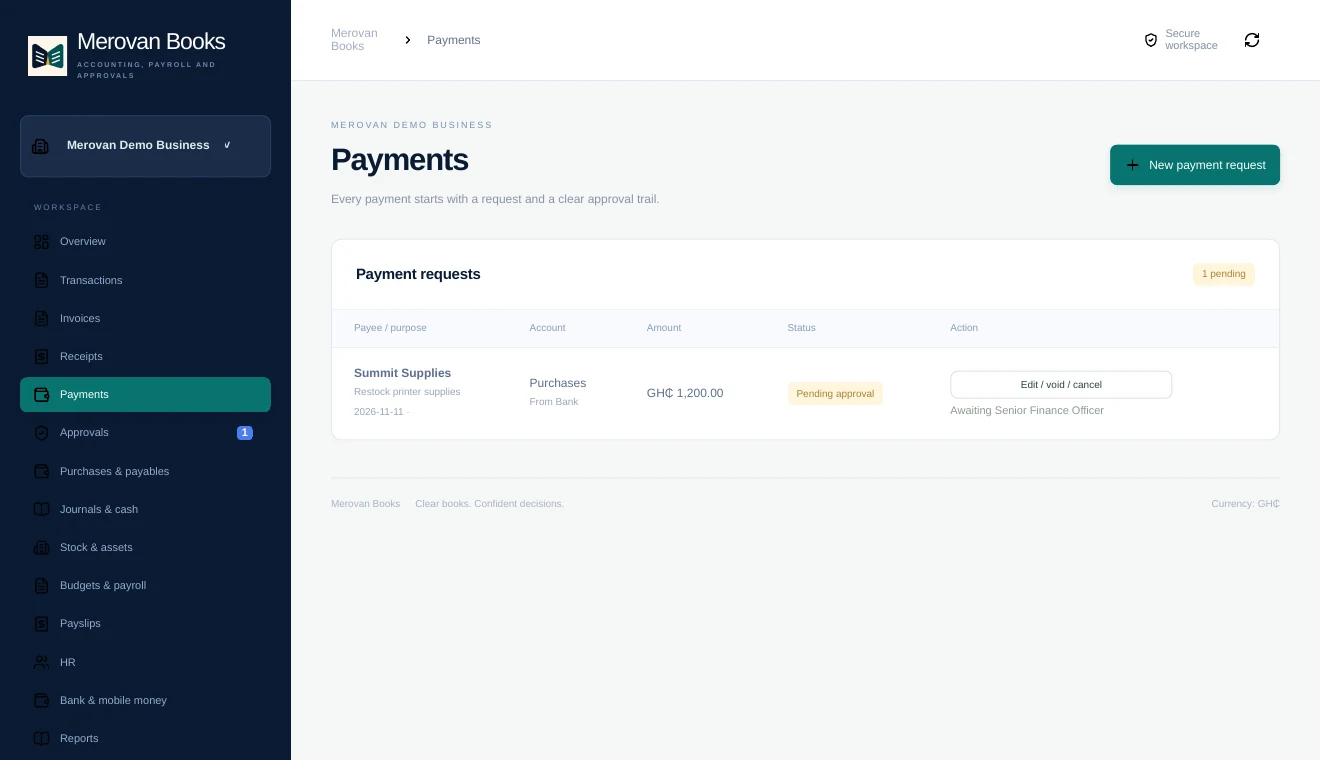
The public welcome page and two workspace views. The workspace examples use sample business data.
Navigate Merovan Books
Follow the workspace menu from Overview to Sign Out. The illustrations use sample data.
Workspace navigation and Overview
- Find your way around
- Choose the organisation at the top of the sidebar. Select a menu item to open it. The header shows the current section and the refresh icon reloads workspace data. On a narrow screen, swipe the workspace menu sideways. Your role and organisation type determine which sections appear.
- Read the Overview cards
- Sales invoiced shows issued sales. Cash received shows recorded receipts. Customer balances shows outstanding receivables. Awaiting approval shows payment requests still to be reviewed. Recent activity helps you find the latest entries.
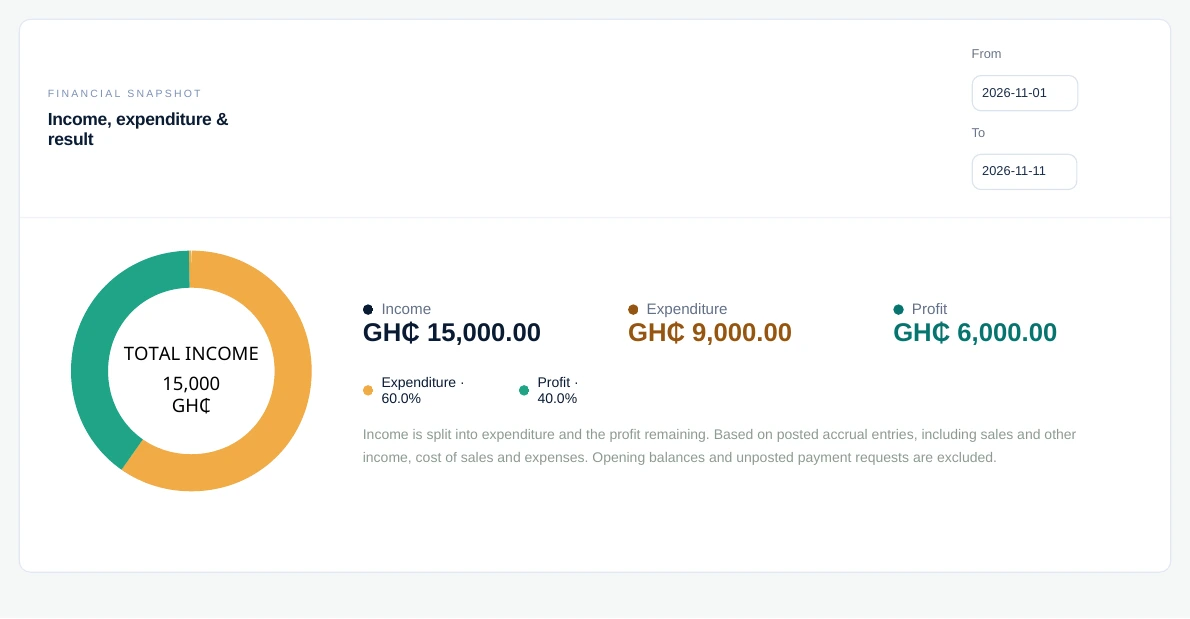
- Set the chart dates
- In Financial Snapshot, choose From and To. Income and expenditure use posted accrual entries within those dates, including sales, other income, cost of sales and expenses. Opening balances and unposted requests are excluded.
- Read the pie chart
- When there is a profit, the ring splits total income into expenditure and profit. When there is a loss, the ring splits total expenditure into income covering costs and a red loss or shortfall. The legend shows percentages of the total in the centre. When the ring is unavailable, use the figures beside it. Cash movements are shown separately in the Cash flow statement.
Transactions, invoices and receipts
- Transactions
- Find a transaction and review its details and history. For eligible changes, choose Edit, Cancel or Void and give a reason. A pending cancellation or void keeps the original accounting effect until Manager/IT approves it.
- Invoices
- Choose New invoice. Enter the customer, dates and each item or service. Review the total and tax, then save. Use View / print to issue a copy and check the Outstanding column for amounts still due.
- Receipts
- Choose Record receipt and select the invoice, receiving account, date and amount. Record each part payment separately and print the receipt. Use the other receipt workflow for money received without a customer invoice.
Payments, approvals, purchases and journals
- Payments
- Choose New payment request. Enter the payee, purpose, amount and cash or bank source. Link the bill or other payable if applicable. After approval, print the voucher. Record payment with its actual date once funds have been paid.
- Approvals
- The badge counts pending payment requests. A Senior Finance Officer reviews the request and approves or returns it with a reason. The requester cannot approve their own request. Manager/IT also reviews eligible transaction change requests here.
- Purchases & payables
- Enter supplier bills and eligible supplier credits. Link a settlement to the original bill, including when paying only part. Use the supplier statement or Payables ageing to see what remains due.
- Journals & cash
- Enter balanced journal lines and select the cash-flow activity where needed. Record internal transfers between cash, banks or wallets. Reconcile the ledger against a bank or wallet statement and investigate differences.
Stock, payroll and financial institution tools
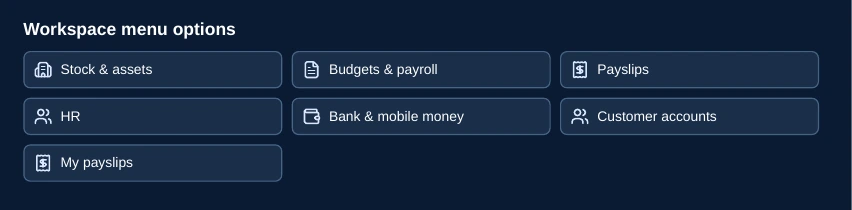
- Stock & assets
- Record a physical stocktake with quantities and unit costs. Register fixed assets and post depreciation for the appropriate period. Review Stock valuation and Depreciation schedule before closing the period.
- Budgets & payroll
- Set budgets by account and period. Compare them with actual postings. Use the employee roster to prepare payroll and review gross pay, deductions and adjustments before posting.
- Payslips
- Authorised finance staff can review and print posted payslips. The payment status follows the payment recorded in Merovan Books.
- My payslips
- Staff with a linked employee account can view their own payslips. An employee-only login opens the employee portal.
- HR
- Maintain personnel records and employment details. Where applicable, review probation dates and appointment drafts before issuing letters.
- Bank & mobile money
- Manager/IT registers the organisation’s bank and wallet accounts. Use the named accounts when recording receipts, payments or transfers. Authorised finance roles see masked numbers.
- Customer accounts
- Available for financial institutions. Register customers and account references, with an identity card for new customers. For withdrawal verification, Manager/IT enters the full reference and selects Find account. An exact match displays the name and available images for visual comparison. An incorrect reference opens no account.
Reports, settings, account and Sign Out
- Reports
- Choose the report and dates, then apply an account, bank, wallet or party filter where available. Use Print to save a PDF or Export CSV to analyse results. Start with Trial balance and Accounting checks when reviewing your books.
- Accounting setup
- Set the accounting start date, base currency and chart of accounts. Review opening balances and set the lock date after reconciling and reviewing the period.
- Organisation
- Manage staff access, download the user manual, and use the backup, restore or offline tools available to your role. Confirm the selected organisation before making changes.
- My account
- Change your password in My account. You may need to sign in again on other devices after a password change.
- Connection and Sign Out
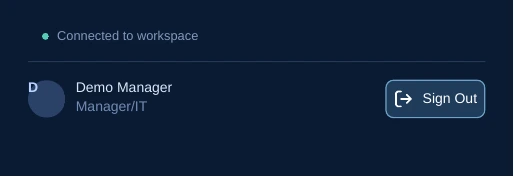
- The connection indicator shows whether the workspace is online. Offline drafts require an internet connection to submit and post. To end your session, select the arrow-out-of-a-door icon beside your profile on desktop, or the Sign Out button in the workspace header on a small screen. Reconnect first if you are offline.
How Merovan Books helps protect financial records
Each organisation has its own password-protected workspace. The Manager/IT controls staff access and can suspend accounts when someone leaves or changes roles.
Read the financial controls guide- Separate preparation and approval
- A payment requester cannot approve their own request. The approval record shows who reviewed it.
- Keep a record of corrections
- Review the audit trail and use controlled correction workflows. Lock closed periods to restrict later postings.
- Control access to sensitive information
- Staff access follows their assigned role. Employees can view their own payslips, and full bank and wallet account numbers are restricted to Manager/IT.
Getting started
Who can use Merovan Books?
Businesses and organisations that need to track money owed, manage spending and prepare reports. Each workspace uses one base currency.
Does Merovan Books move money?
Payments are made through your bank, mobile wallet or cash process. Merovan Books manages the approval and records the payment in your accounts.
What happens after the free trial?
Your workspace becomes read-only. You can still review records and download reports. Request paid access to continue in the same workspace. The first monthly payment provides 60 days from activation.
Read the user manual (PDF)